How to change Minecraft Resolution (complete Guide for All Devices – 2026)
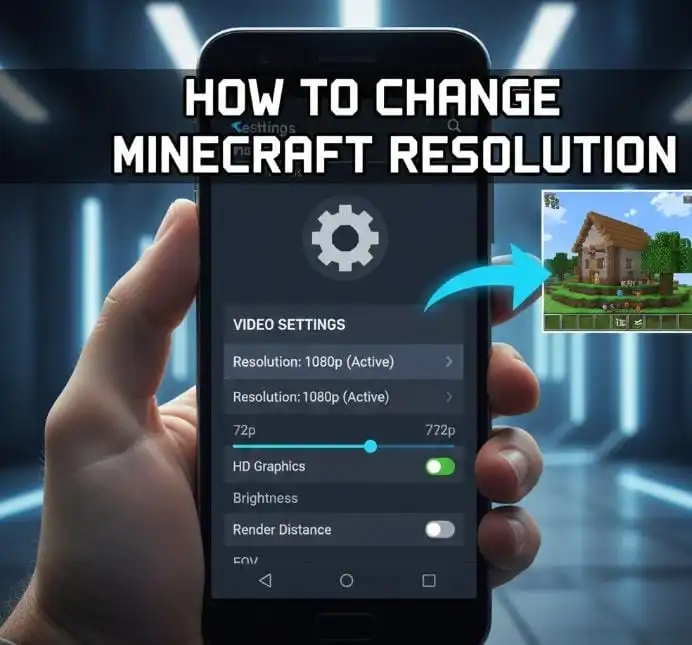
Changing the resolution in Minecraft can dramatically improve your gameplay experience. Whether you play on Android, PC, or console, the right resolution helps you achieve smoother performance, sharper graphics, and better overall visuals.
Many players ignore resolution settings, which can lead to lag, blurry graphics, or poor performance. By adjusting the correct resolution, you can balance performance and visual quality based on your device.
This complete guide explains how to change Minecraft resolution on Android APK, PC, and consoles with step-by-step instructions.
What Is Resolution?
Common resolution examples:
- 1280×720 (720p) – Best for low-end devices
- 1920×1080 (1080p) – Best balance between performance and quality
- 2560×1440 (1440p) – High quality with good performance
- 3840×2160 (4K) – Ultra HD, best for powerful devices
Choosing the right resolution depends on your hardware capability.
Why Changing Resolution Is Important
Adjusting resolution can improve your gameplay in several ways:
- Improves FPS and reduces lag
- Makes graphics sharper and clearer
- Helps prevent overheating
- Improves battery life on mobile devices
- Enhances overall gaming experience
Using incorrect resolution can cause performance problems, especially on weaker devices.
Best Recommended Resolution Settings
For High-End Devices
If your device has strong hardware, use higher resolutions for better visuals:
| Purpose | Recommended Resolution |
| Ultra Graphics | 3840×2160 (4K) |
| Best Balance | 2560×1440 (1440p) |
| Smooth Gameplay | 1920×1080 (1080p) |
High-end phones and PCs can handle these settings easily.
For Mid-Range Devices
Mid-range devices need balanced settings:
| Purpose | Recommended Resolution |
| Best Quality | 1920×1080 |
| Balanced Performance | 1600×900 |
| Smooth Gameplay | 1280×720 |
These settings provide smooth gameplay without heavy lag.
For Low-End Devices
Low-end devices perform better with lower resolution:
| Purpose | Recommended Resolution |
| Stable Performance | 1280×720 |
| Maximum Performance | 1024×768 |
| Best FPS | 800×600 |
Lower resolution reduces device workload.
How to Change Resolution in APK (Android)
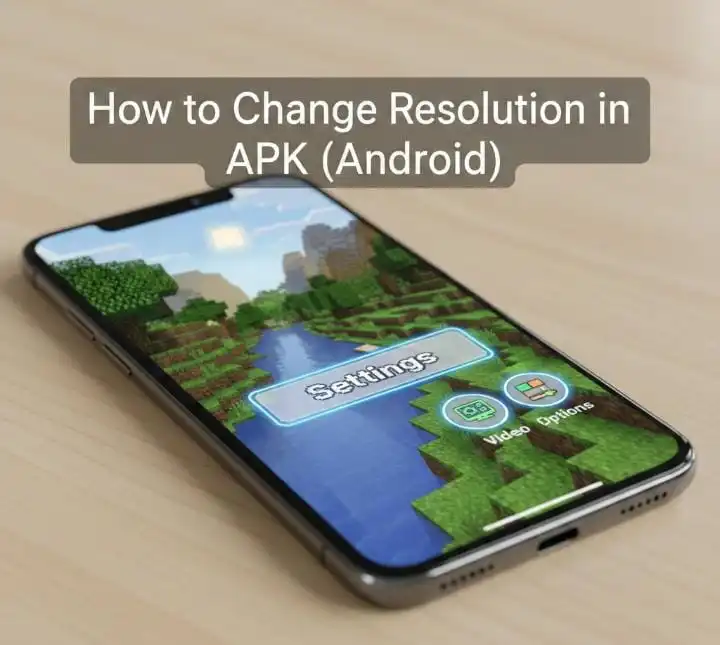
Minecraft APK uses Bedrock Edition settings. Follow these steps:
Open APK
Launch Minecraft on your Android device.
Go to Settings
Tap on the Settings button from the main menu.
Open Video Settings
Scroll and select Video Settings.
Adjust Graphics Settings
Change these options:
- Render Distance
- Graphics Quality
- Frame Rate
Android automatically adjusts resolution based on device performance.
How to Change Resolution in Java Edition (PC)
Java Edition allows full resolution control.
Using Game Settings
- Open Minecraft Launcher
- Start the game
- Click Options
- Select Video Settings
- Choose your preferred resolution
Apply changes and restart if necessary.
Using Launcher Settings
- Open Minecraft Launcher
- Click Installations
- Select your profile
- Click Edit
- Change resolution manually
Save settings and launch the game.
How to Change Resolution on Console (Xbox & PlayStation)
Console resolution depends on system display settings.
Steps:
- Open Minecraft
- Go to Settings
- Select Video Settings
- Adjust graphics and display
How to Change Resolution in Minecraft Java Edition (PC)
Java Edition allows full resolution control.
Using Game Settings
- Open Minecraft Launcher
- Start the game
- Click Options
- Select Video Settings
- Choose your preferred resolution
Apply changes and restart if necessary.
Using Launcher Settings
- Open Minecraft Launcher
- Click Installations
- Select your profile
- Click Edit
- Change resolution manually
Save settings and launch the game.
How to Change Resolution on Console (Xbox & PlayStation)
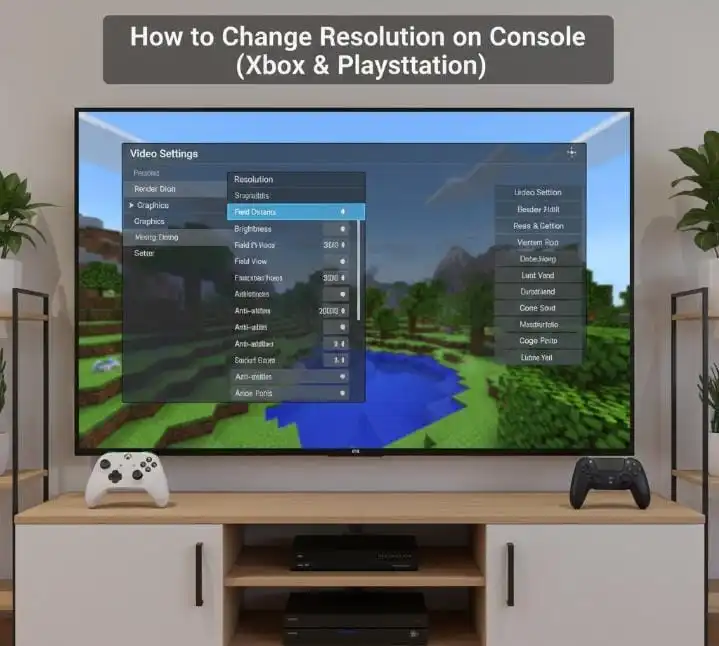
Console resolution depends on system display settings.
Steps:
- Open Minecraft
- Go to Settings
- Select Video Settings
- Adjust graphics and display
You can also change resolution from console system settings.
Best Video Settings for Maximum FPS
Low-End Devices
| Setting | Recommended Value |
| Resolution | 1920×1080 or higher |
| Graphics | Fancy |
| Render Distance | 16-32 chunks |
| Particles | All |
| Clouds | Fancy |
| VSync | On |
These settings provide best visual quality.
Common Resolution Problems and Fixes
Problem: Game Lag After Increasing Resolution
Solution: Lower resolution and reduce render distance.
Problem: Blurry Graphics
Solution: Set resolution to match screen native resolution.
Problem: Game Crashes
Solution: Use lower resolution and restart game.
Problem: FPS Drops
Solution: Disable fancy graphics and reduce particles.
Best Resolution for APK (Android)
Recommended based on device RAM:
| RAM | Recommended Resolution |
| 2GB RAM | 1280×720 |
| 4GB RAM | 1600×900 |
| 6GB RAM | 1920×1080 |
| 8GB+ RAM | 1920×1080 or higher |
Higher RAM supports better resolution.
Benefits of Using Correct Resolution
- Better graphics clarity
- Improved performance
- Less device overheating
- Smooth gameplay
- Better battery efficiency
Correct settings improve overall gaming experience.
Tips for Best Performance
Follow these tips:
- Use recommended resolution
- Close background apps
- Keep game updated
- Lower render distance if lag occurs
- Avoid ultra settings on weak devices
These tips improve performance.
Final Thoughts
Changing resolution in Minecraft is one of the easiest ways to improve gameplay performance and graphics quality. Whether you play on Android, PC, or console, using the correct resolution ensures smooth gameplay and better visuals.
Low-end devices perform best with lower resolution, while high-end devices can handle ultra settings easily.
Always choose resolution based on your device capability for the best experience.